What is Google Stitch?
Google Stitch is an AI design tool from Google that generates complete screen designs from a text description, including design tokens, colours and typography.
Stitch is part of Google's new generation of creative AI tools. Instead of building a design pixel by pixel in Figma or Adobe XD, you simply describe what you want to see. "A login screen with a large welcome message, an email field, a password field and a green button." Stitch generates the complete design in seconds.
The platform works with projects and screens. A project is your container (for example "Customer portal"), and each screen is an individual page or view within that project. You can generate several screens, create variants and give them all the same visual style.
In short: Google Stitch = you describe the screen, AI designs it. You get a visual design that you can refine, give a design system and export to code.
How does it work technically?
Stitch runs on Google's Gemini models. When you send a prompt, the model analyses your description and generates a full screen design with correct layout, spacing, colours and typography. The result is not an image but a structured design that you can edit and export.
Each design consists of components: buttons, input fields, cards, navigation bars and more. These components follow standard design patterns, so the result looks professional straight away.
Claude Design MCP explained
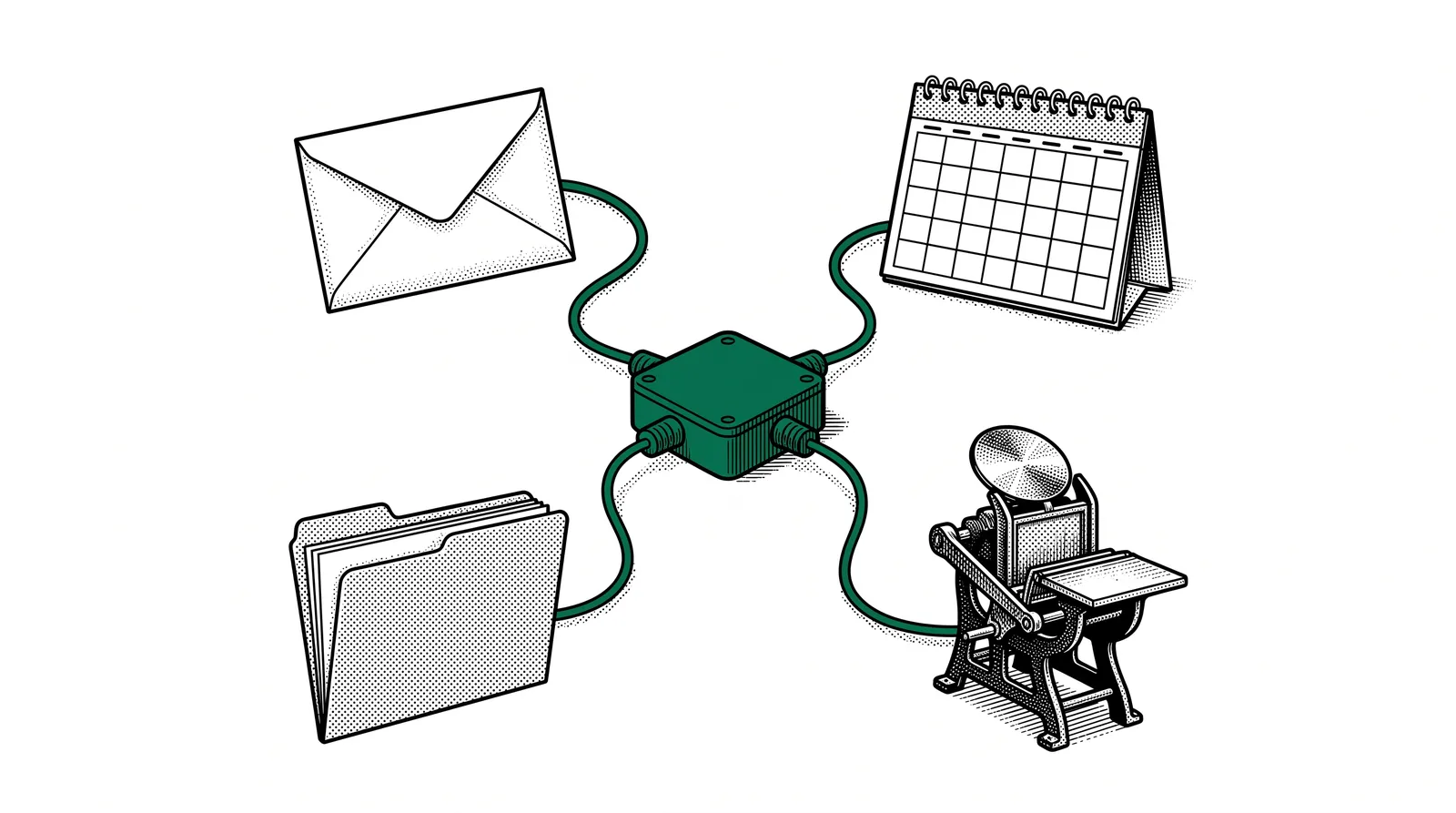
Through the Model Context Protocol (MCP), Claude can communicate directly with Google Stitch. You give instructions in the chat window and Claude builds your designs.
MCP is an open standard that connects AI assistants such as Claude to external tools and services. The Stitch MCP server gives Claude access to all the functions of Google Stitch: creating projects, generating screens, managing design systems and editing designs.
What can Claude do through the Design MCP?
Create new projects, open existing projects and view the screens within a project.
Have Stitch's AI engine create a full screen design from a text prompt.
Set colours, fonts, corner radii and a light/dark mode and apply them to all your screens.
Generate several versions of a screen to explore different directions.
The advantage: You keep working in your familiar Claude environment. You do not need to open Google Stitch separately. Claude passes on your instructions, receives the result and shows you a preview. All from a conversation.
The MCP connection works in both directions: Claude can send data to Stitch (a prompt, a design system) and retrieve data (a screen preview, a list of projects). This makes a seamless workflow possible.
From text to screen design
The core process: you describe what you want to see, and AI creates a complete visual design. Here you learn how to do that step by step.
Start with a new project in Stitch. Give it a clear name such as "Printing company customer portal" or "Events app". This is your container for all screens.
Describe the screen you want: "An overview page with a list of current orders, each with status, customer name and deadline. A search bar and filter options at the top." Be specific about layout and content.
Stitch generates the design in a few seconds. You get a fully worked-out screen with correct proportions, typography and use of colour.
Adjust the design: "Make the status labels colour-coded: green for ready, orange for in production, red for delayed." Stitch adjusts the screen immediately.
Not sure which direction to take? Have Stitch generate several variants. Compare them and pick the best one as your basis.
Tip: Always mention the device type (desktop, tablet or mobile) in your prompt. Stitch automatically optimises the layout for the chosen screen size.
Design systems and brand identity
A design system makes sure all your screens speak the same visual language. With Stitch you set this up once and apply it to every design.
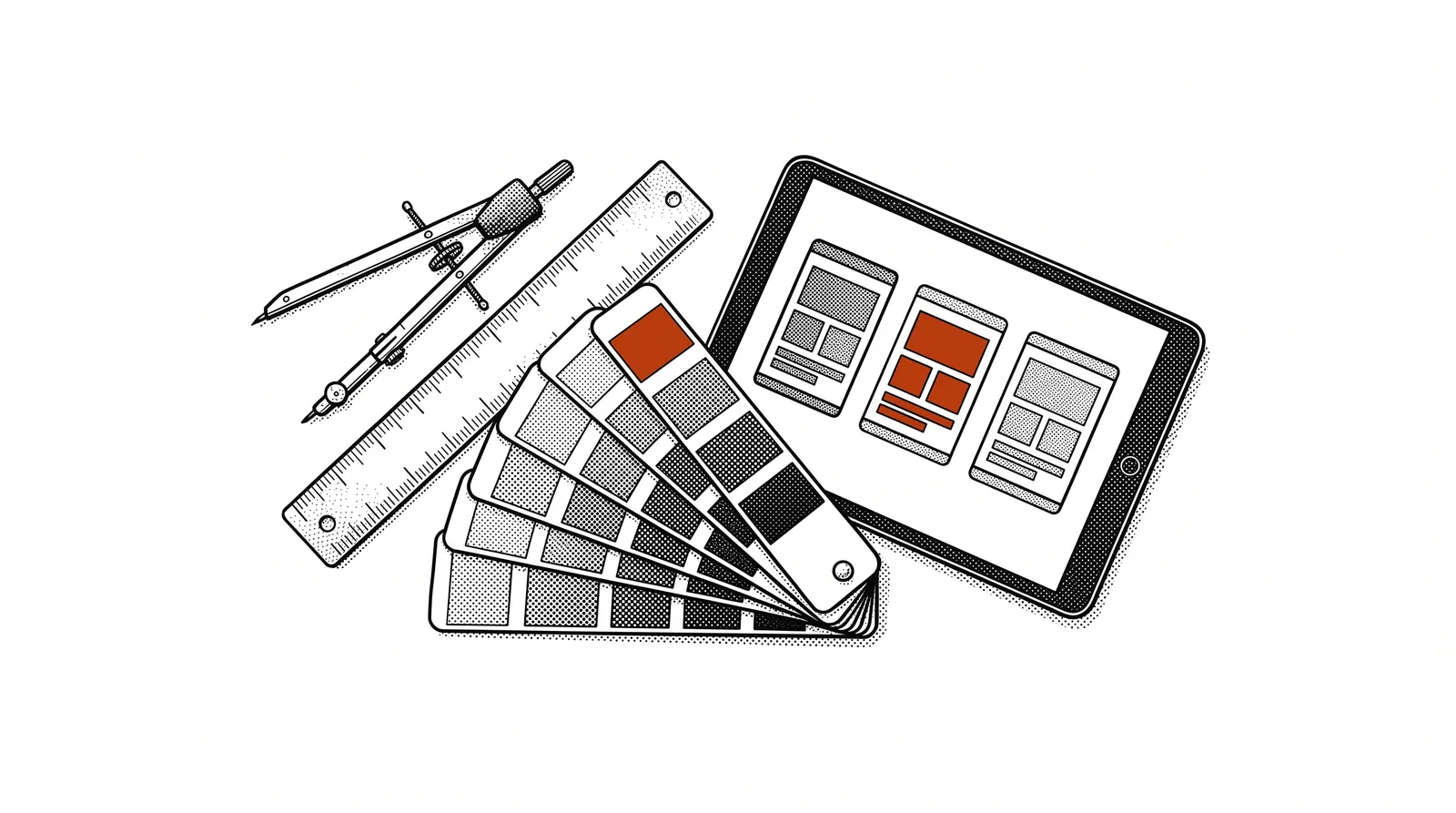
A design system in Stitch consists of several parts that together define the visual identity of your project. You can choose from presets or set everything yourself.
The parts of a design system
| Part | What it does |
|---|---|
| Colour palette | Primary colour, accent colours and saturation levels. You can choose a preset or enter your own hex codes. |
| Typography | The font for your whole project: Inter, Roboto, Space Grotesk and more. Consistent across all screens. |
| Shape | The corner radius of buttons, cards and input fields. From sharp and businesslike to round and playful. |
| Mode | Light or dark mode, with custom background colours for both variants. |
| Design MD | Free-text instructions in markdown for specific style rules that do not fit the standard options. |
Practical: Already have a brand identity? Give Claude your brand colour as a hex code (e.g. #1B8A93), your preferred font and your style preferences. Claude creates the design system and applies it to all your screens in one go.
The design system works as a global template. Every new screen you generate automatically inherits the colours, fonts and shapes of your design system. That keeps everything consistent without having to check manually.
From design to production code
The real advantage of AI-driven design: your design is not just a picture, it is the blueprint for working code.
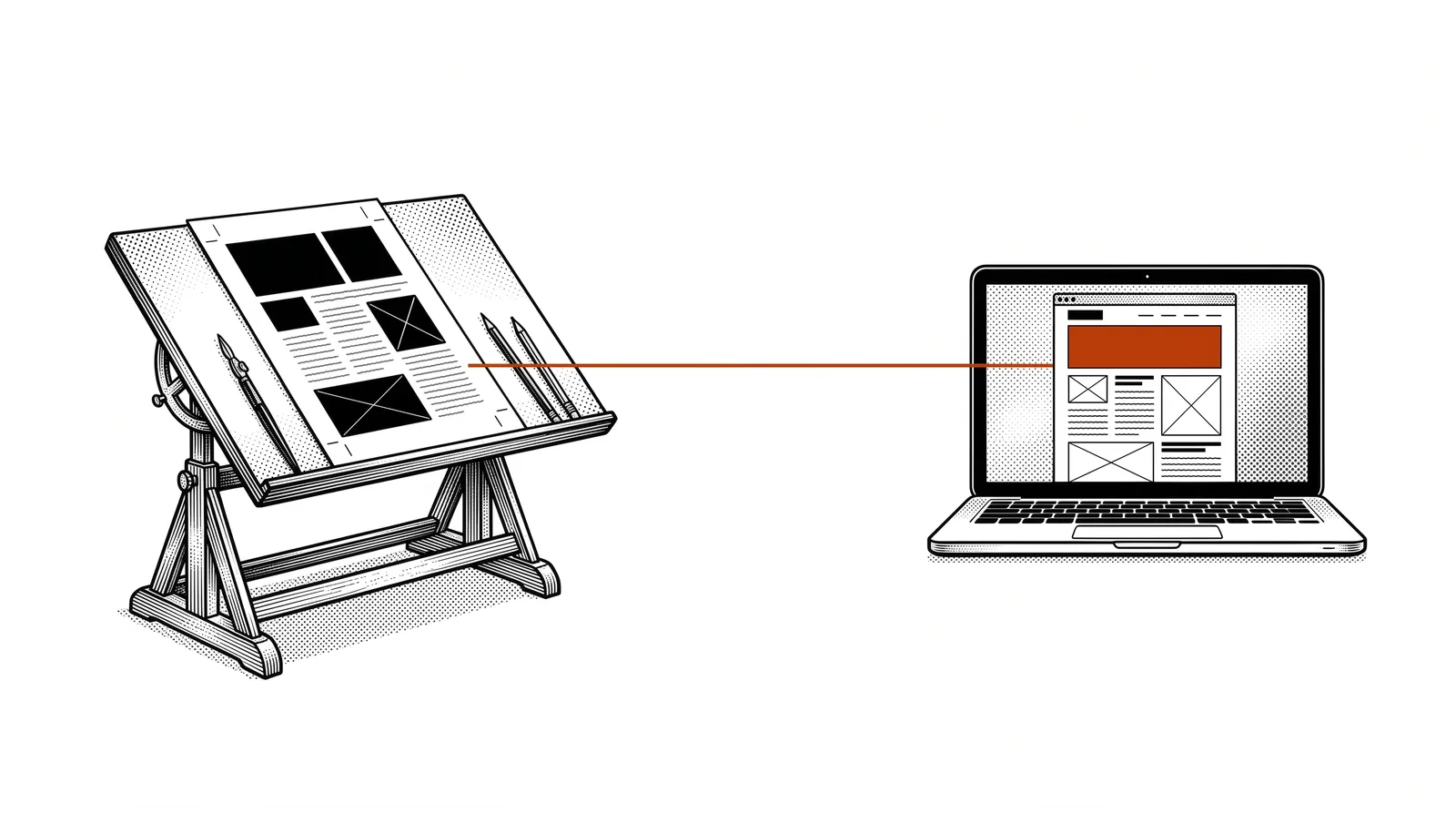
Traditionally you first make a design in Figma, then a developer turns it into code. With Stitch and Claude that intermediate step disappears. Your design already contains the structure and components needed to turn it into code directly.
Two routes to code
Stitch can export screens as frontend code. The platform generates HTML, CSS and component structures that you can use directly in your project.
Ask Claude to convert the Stitch design into production code. Claude reads the screen structure and generates React, HTML or another framework of your choice. You get working code that visually matches your design.
The workflow in practice
A typical workflow looks like this: you describe your screens in Claude, Stitch generates the designs, you refine them until you are satisfied, and then you ask Claude to write the code. The whole journey from idea to working application can happen in a single session.
Claude can also bring in context from your existing codebase. If you already have a project with certain components or a specific framework, Claude writes the new code so that it fits seamlessly with what is already there.
Important: The generated code is a starting point. Always check the output and test the functionality. AI is fast but not infallible. Use it as an accelerator, not as a replacement for quality control.
Practical examples for the printing industry
Concrete applications of AI-driven design that are relevant to printing companies, sign makers and graphic professionals.
A complete customer portal with order status, file upload and invoice overview. Designed in Stitch, built with Claude Code.
A visual tool where customers choose format, material and finishing and see a live price indication. The screen design serves as the basis for the app.
An internal screen with a real-time overview of orders in production, capacity utilisation and deadlines. Designed for a large screen in the workshop.
A quickly designed landing page for a trade fair with registration form, programme and stand location. From idea to live page in an hour.
Case: Printelligence Knowledge base
The pages you are reading now are an example of the workflow. The layout and design system of this Knowledge base series were designed with AI tools and built in HTML through Claude Code. The design system (colours, typography, components) was defined once and is reused for every new edition.
This shows the power of a consistent design workflow: you invest once in your visual language and then generate new content at great speed that always looks professional.
Comparison with traditional tools
How does the AI-powered workflow compare to the tools you already know?
| Aspect | Figma / Adobe XD | Stitch + Claude |
|---|---|---|
| Learning curve | Weeks to months | Minutes: you describe what you want |
| Speed | Hours per screen | Seconds per screen |
| Design system | Build manually | Generate and apply automatically |
| Variants | Every variant by hand | Several variants in one click |
| To code | Developer needed | Claude generates code directly |
| Price | Subscription per user | Free (Stitch) + Claude licence |
Nuance: Stitch does not fully replace Figma. For complex interactive prototypes, animations and detailed pixel work, Figma remains stronger. But for the fast route from idea to working design, the AI workflow is unbeatable.
When do you choose what?
Use Stitch and Claude when you need a visual design quickly, when you have no design experience, or when you want to show a prototype to a customer or colleague. Choose Figma when you need to build an extensive interactive prototype with micro-animations and pixel-perfect control.
The best approach? Combine both. Use Stitch for the first design phase and export to Figma when you need extra refinement. Or start in Stitch and go straight to code if the design is good enough.
Tips and best practices
Get the most out of Google Stitch and the Design MCP with these practical guidelines.
Do's
Set your colours, font and style first before you start generating screens. That way every screen is immediately consistent with your brand identity.
Describe not only what is on the screen but also the layout: "a navigation menu on the left, the content on the right" works better than "a page with navigation".
Have several versions generated before you choose a direction. This costs hardly any extra time and gives you many more design options.
Don'ts
Generated code is a starting point, not a finished product. Always check for errors, accessibility and responsiveness before you publish.
A complex screen with dozens of elements? Build it up in steps. First the main structure, then the details per section.
Advanced workflows
Once you have mastered the basics, these techniques let you speed up your design process further.
Design system as brand guardian
Capture your full brand identity in a Stitch design system: primary colour, secondary colours, font, corner radii and a markdown file with extra rules. Share this with your team so that everyone creates designs that are consistent with your brand.
Multi-device design
Design the same screen for desktop, tablet and mobile. Stitch automatically adapts the layout to the chosen device type. That lets you check in minutes whether your design works on all screen sizes.
Iterative refinement with edit prompts
After the first generation you can edit screens with targeted instructions. "Move the search bar to the top" or "Make the cards bigger and add an image." This is faster than regenerating and keeps the elements you already like.
Combine with Vibe Coding
The most powerful workflow: design your screens in Stitch, export to code through Claude, and use Claude Code to turn it into a working application. You go from sketch to live product in a single session, without bringing in a designer or developer.
The next step: Once you are comfortable with Stitch and the Design MCP, explore the option of connecting your designs to real data through MCP servers. That turns static screens into dynamic applications. That is the advanced Builder level.
Further reading and sources
Useful sources to keep learning and experimenting with AI-driven design.
Google's AI design tool for generating screen designs from text. Free to use with a Google account.
The open standard that connects AI assistants to external tools. Documentation and specifications.
The AI coding assistant from Anthropic. Works seamlessly with the Stitch MCP for design-to-code workflows.
The industry standard for UI design. Good to know as a complement to AI tools for complex projects.
More guides, masterclasses and practical AI applications for the printing industry.
You do not need to be a designer
to design professionally.You need a vision,
the right words,
and AI does the rest.